Ultimate guide to mining crypto with a Bitmain Antminer S19 and S19j Pro
Note: Although the Antminer S19 can be used to mine Bitcoin (BTC), Bitcoin SV (BSV), Bitcoin Cash (BCH), and other coins using the SHA-256 algorithm, we shall concentrate on
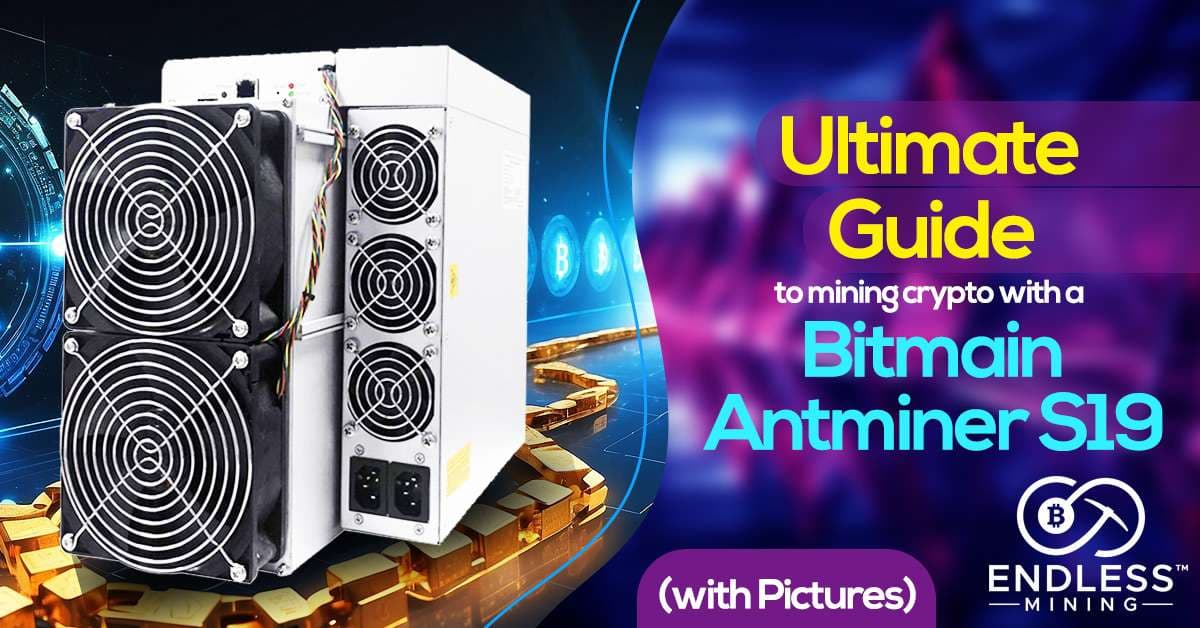
Guide to mining crypto with a Bitmain Antminer S19 and S19j Pro | Last Updated June 2026
TLDR: Mining Crypto with a Bitmain Antminer S19
- The S19 series still holds up in 2026. Models like the S19j Pro (100 TH/s) and S19 XP Hydro (255 TH/s) remain competitive at facilities with sub-$0.07/kWh electricity.
- You need serious power infrastructure. The S19j Pro pulls around 3,068W. That means you'll need a 240V/30A circuit, a matching PDU, and two 14-gauge C13-to-C14 power cables.
- Ventilation is non-negotiable. These machines run hot. Place your miner in a cool, well-ventilated space like a garage or basement, and keep ambient temps below 35�C (95�F).
- The miner has a dual power input. Both cables must connect simultaneously�the unit won't run on one alone.
- Find your miner's IP using one of three methods: Bitmain's IP Reporter, Advanced IP Scanner, or your router's admin panel.
- Always update firmware before connecting to a pool. Running stale firmware means leaving efficiency and security on the table.
- The default login is "root / root." Change it immediately after your first login�this is a critical security step most beginners skip.
- Use an active, reputable mining pool in 2026. Antpool, F2Pool, Braiins Pool, and ViaBTC are solid choices. Poolin shut down its public Bitcoin pool in 2023�avoid it.
- Your worker name goes into all three pool fields. Only the URL changes across Pool 1, Pool 2, and Pool 3.
- The miner reboots after you save pool settings. Give it a few minutes, then check your dashboard for live hashrate data.
- Hashrate takes 10�15 minutes to stabilize. Don't panic if it looks low right after startup.
- If something's off, start with the basics. Check cables, internet connection, and firmware before assuming something is broken.
What You Need Before Mining Crypto with a Bitmain Antminer S19 and S19j Pro
First things first�let's make sure you're actually ready to run this SHA-256 mining hardware. Setting up your environment right from the jump saves you a ton of headaches later.
Power requirements
The S19j Pro+ draws up to 3,350W at full load. So a regular 120V home outlet won't cut it. You'll need a dedicated 240V, 30-amp circuit and a matching PDU. If you're in North America, have a licensed electrician install that circuit before your miner arrives. Also, grab two 14-gauge C13-to-C14 power cables�the S19 series uses a dual power input design, and both cables must connect simultaneously.
Cooling and environment
Choose a well-ventilated space like a garage, basement, or dedicated mining room. The S19j Pro's fans spin at around 6,000 RPM under full load�it's loud, and it pushes serious heat. Keep ambient room temps below 35�C (95�F). Also, if you're running multiple units, leave at least 12 inches of space between them for proper airflow.
Networking
The Antminer S19 does not support Wi-Fi. You'll need an Ethernet cable running directly from your router or switch to the miner. A stable, wired connection is essential for consistent hashrate and reliable pool communication.
What to check in the box
- Antminer S19 or S19j Pro unit
- Two power cables (C13 to C14)
- User manual
- Model label with firmware version info
Step 1: Power On and Connect the Antminer S19
Once your space is ready, plug both power cables into the miner and connect them to your PDU. Then, plug the Ethernet cable into the miner's network port and the other end into your router or switch.
After powering on, the miner's LED lights up and the fans spin to life. The Ethernet link light on the port should come on within seconds. If it doesn't, reseat the cable and try a different port on your router.
Pro tip: Don't place the miner directly on a carpeted floor. Static discharge and poor airflow are both bad news for ASIC hardware. Use a rack or a hard, flat surface instead.
Step 2: Find Your Bitmain Antminer S19 IP Address
To access the miner's settings, you need its local IP address. Fortunately, you've got three solid options here.
Method 1: Bitmain IP Reporter
Download IP Reporter from Bitmain's official support page. Run it with administrator privileges, then click "Start" in the app. Next, press and hold the IP Reporter button on the physical miner for about five seconds. If your miner and computer are on the same local network, the app displays the miner's IP and MAC address in seconds.
If Windows Firewall pops up and blocks the connection, click "Allow" to give the app network access. Without that permission, the tool won't work.
Method 2: Advanced IP Scanner
Download Advanced IP Scanner (free), run a scan on your local network range, and look for a device labeled "Antminer." This method works great if you're running multiple miners or if IP Reporter isn't cooperating with your setup.
Method 3: Router Admin Panel
Log into your router (usually at 192.168.1.1 or 192.168.0.1), then navigate to the DHCP client list or connected devices section. Look for a hostname like "antminer" or check for an unfamiliar MAC address. Bitmain uses a consistent MAC prefix, so the device typically stands out.
Step 3: Log Into the Antminer S19 Web Interface
Once you have the IP address, open your browser and type it into the address bar�something like 192.168.1.112. Hit Enter, and a login screen appears.
The default credentials for all Bitmain Antminer S19 models are:
- Username: root
- Password: root
After logging in, you land on the miner's main dashboard. From here, you can see live hashrate, fan speeds, chip temperatures, and overall system status. The left-hand menu gives you access to Settings, System, and IP Config options.
Step 4: Update Your Antminer S19 Firmware Before You Mine
This step is one most beginners skip entirely�and it costs them. Running outdated firmware leads to lower efficiency, higher error rates, and missed performance improvements that Bitmain rolls out regularly.
On the dashboard, navigate to System > Firmware Version and note the date shown. Then, head to Bitmain's official support site and check the latest published firmware for your specific S19 model. If the dates don't match, it's time to update.
To install the update, go to System > Upgrade, select the firmware file you just downloaded, check "Keep Settings," and click Update. The process takes a few minutes and the miner reboots automatically when it finishes.
Critical warning: Never cut power during a firmware update. Doing so can brick the control board entirely, and you'd need to send the unit back to Bitmain for repair.
Step 5: Change Your Default Root Password Immediately
Do this before connecting to any pool. The default "root" password is publicly known, and your miner sits exposed on your local network. Go to System > Password, enter the current password, then set a new strong one.
This step protects you from unauthorized access and potential hashrate hijacking�a real attack vector that's more common in 2026 than most people expect. It only takes thirty seconds and it's worth every one of them.
Step 6: Mining Crypto with a Bitmain Antminer S19 and S19j Pro � Pool Configuration
Now for the main event. To start mining crypto with a Bitmain Antminer S19 and S19j Pro, you need to connect to an active Bitcoin mining pool. In 2026, here are the best options for SHA-256 Bitcoin mining:
Pool
Fee
Payout Method
Best For
Antpool
0�2.5%
PPS+ / PPLNS
All miner sizes
F2Pool
2.5%
PPS+
Beginners
Braiins Pool
2%
FPPS
Antminer + Braiins OS pairing
ViaBTC
2�4%
PPS / PPLNS
Flexible payout options
For this walkthrough, let's use F2Pool since it's straightforward and beginner-friendly.
Setting Up Your F2Pool Account
Head to f2pool.com and create a free account. Once you're in, navigate to the mining dashboard and add a Bitcoin (BTC) sub-account. Next, set your payout wallet address�this is where your BTC mining rewards land. Double-check this address carefully. A single typo means your coins disappear with zero way to recover them.
After saving, F2Pool provides your pool URL, worker name, and password. Keep that info handy.
Entering Pool Settings on Your Antminer S19j Pro
Back in the miner's web interface, click Settings in the left-hand menu. You'll see three pool slots. Here's how to fill them out:
- Pool 1 URL: Paste the primary stratum URL from your F2Pool account (e.g., stratum+tcp://btc.f2pool.com:3333)
- Pool 2 URL: Paste the secondary/backup URL F2Pool provides
- Pool 3 URL: Use the third URL or repeat Pool 2 as a fallback
For the Miner Name (Worker) field, paste your F2Pool worker name into all three slots. Unlike the pool URL�which changes for each slot�the worker name stays the same across all three fields.
For the Password field, enter the password from F2Pool. It's typically the same in all three fields.
Finally, choose your fan speed preference and hit Save. The miner reboots automatically.
Step 7: Verifying Your Hashrate After Setup
After the miner restarts�usually within two to three minutes�click Dashboard in the left menu. You'll see live data: hashrate, fan speeds, chip temps, and pool connection status.
Don't stress if hashrate looks low right off the bat. It typically takes ten to fifteen minutes to stabilize and reflect the miner's true rated output. Initially, your S19j Pro might show 20�40 TH/s. Then it climbs steadily toward its rated 100 TH/s as the chips warm up and pool communication locks in.
On your F2Pool account, click into your sub-account and check the Workers tab. Within fifteen minutes, your miner should appear with an active hashrate reading. If it shows up green, you're officially mining Bitcoin.
Troubleshooting: Common Issues When Mining Crypto with a Bitmain Antminer S19 and S19j Pro
Even with a clean setup, things occasionally go sideways. Here's how to fix the most common problems fast.
No hashrate showing on the dashboard
First, check all physical connections�both power cables and the Ethernet cable. Then, verify your pool URL is correct and the pool is actively online. Also, confirm the miner rebooted fully after you saved settings. Sometimes it just needs another minute.
Overheating or high temperature warnings
Check your ambient room temperature and make sure airflow moves cleanly through the unit�intake in the front, exhaust out the back. Clean the intake fans with compressed air if dust is blocking them. Also note that if the outlet temperature hits 85�C, the firmware automatically shuts down the hashboards to protect the chips.
Miner not showing up on the network
Try a different Ethernet cable or a different port on your switch. Also, confirm your miner and computer are on the same subnet. If IP Reporter still won't find it, use Advanced IP Scanner or your router's device list instead.
Pool connection rejected
Double-check that you're using a current, active pool URL and that your worker name is copy-pasted exactly as shown in your pool account. Some pools are case-sensitive. Also, make sure your router or firewall isn't blocking the stratum port�typically 3333 or 3336.
FAQ: Mining Crypto with a Bitmain Antminer S19 and S19j Pro
Is the Bitmain Antminer S19 Still Profitable to Mine With in 2026?
It depends primarily on your electricity rate. In 2026, with Bitcoin's global network hashrate sitting above 1,100 EH/s, older S19 models are tight on margins at $0.10/kWh. However, miners with access to sub-$0.06/kWh power�from renewables, stranded energy, or industrial contracts�are still turning real profit. The S19 XP Hydro, running at around 21.5 J/TH, is the most efficient S19 variant and stays competitive at scale.
What Is the Default Password for the Bitmain Antminer S19?
The default username and password for all Bitmain Antminer S19 models is "root" for both fields. Change it immediately after your first login. Leaving the default credentials in place is a serious security risk on any networked mining device.
How Do I Find My Antminer S19 IP Address Without IP Reporter?
You've got two solid alternatives. First, download Advanced IP Scanner, run a scan on your local network range, and look for the Antminer device. Second, log into your router's admin panel and check the DHCP client list for a device with an "antminer" hostname. Both methods are reliable and don't require any Bitmain-specific software.
Which Mining Pool Should I Use With an Antminer S19 in 2026?
Antpool, F2Pool, Braiins Pool, and ViaBTC are all active and reputable in 2026. Braiins Pool pairs especially well with Antminer hardware since it integrates with Braiins OS+ for advanced efficiency tuning. F2Pool is the easiest entry point for beginners. Notably, Poolin shut down its public Bitcoin mining pool back in 2023, so steer clear of it entirely.
Can I Mine Coins Other Than Bitcoin With the Antminer S19?
Yes. The S19 series runs the SHA-256 algorithm, so it can also mine Bitcoin Cash (BCH) and Bitcoin SV (BSV). That said, Bitcoin remains the most profitable option by a wide margin in 2026, given its price, network security premium, and post-halving reward dynamics.
How Often Should I Update My Antminer S19 Firmware?
Check for updates every one to two months on Bitmain's official support page. Firmware updates often deliver efficiency gains, bug fixes, and security patches. Always download directly from Bitmain's site�third-party firmware sources are a security risk and can void your warranty.
Start Mining Crypto with a Bitmain Antminer S19 and S19j Pro the Right Way
Mining crypto with a Bitmain Antminer S19 and S19j Pro in 2026 is still a legit play�especially if your electricity cost is dialed in and your setup is solid. The process itself isn't complicated. However, it does reward the miners who pay attention to the details: firmware, security, pool selection, and environment.
Follow these steps, use an active and reputable mining pool, and keep an eye on your dashboard regularly. Your hashrate and chip temps tell you everything about how your miner is doing. Keep your firmware current, your password changed, and your space cool�and your S19 will run reliably for years.
Ready to Mine Smarter? Meet EndlessMining.com
If you�re serious about crypto mining, challenges like � trust, accountability, security, and efficiency � are problems you face every day. That�s exactly why�EndlessMining.com�was built.
EndlessMining.com is the mining hardware marketplace that actually has your back:
- ?�Buy & Sell Mining Hardware�� Browse a curated�marketplace�connecting miners, dealers, and buyers worldwide.
- ?�Hosting Services�� Skip the overhead. Let EndlessMining host your miners in professional facilities so you can focus on returns.
- ?�Mining Consultancy�� Get expert guidance on equipment selection, setup, and optimization from people who live and breathe mining.
- ?�Mining Calculator�� Run the numbers before you commit. Estimate profitability based on your hardware, power costs, and current network conditions.
- ?�Escrow-Protected Transactions�� EndlessMining.com is currently the�only crypto miner marketplace officially partnered with Escrow.com, meaning every transaction is protected. No scams. No chargebacks. No uncertainty. In a space defined by trustlessness, Endlessmining.com offers something rare:�accountability you can count on.